
Home Assistant Green makes it possible to run a smart-home controller on dedicated hardware without building a server. But connecting its power supply is only the first step. A successful first installation means you know what is controlled locally, which radios are still missing, who administers the system, and what keeps working when the internet or a cloud account is unavailable.
Quick start: connect Green to your own router or switch by Ethernet, supply power, allow first startup to complete, open the official onboarding interface, create and secure the owner account, and add one supported low-risk device or integration. Do not buy additional Zigbee or Thread hardware until you know what radios and border routers your chosen devices need. Finish by creating a backup and testing one useful automation and its manual fallback.
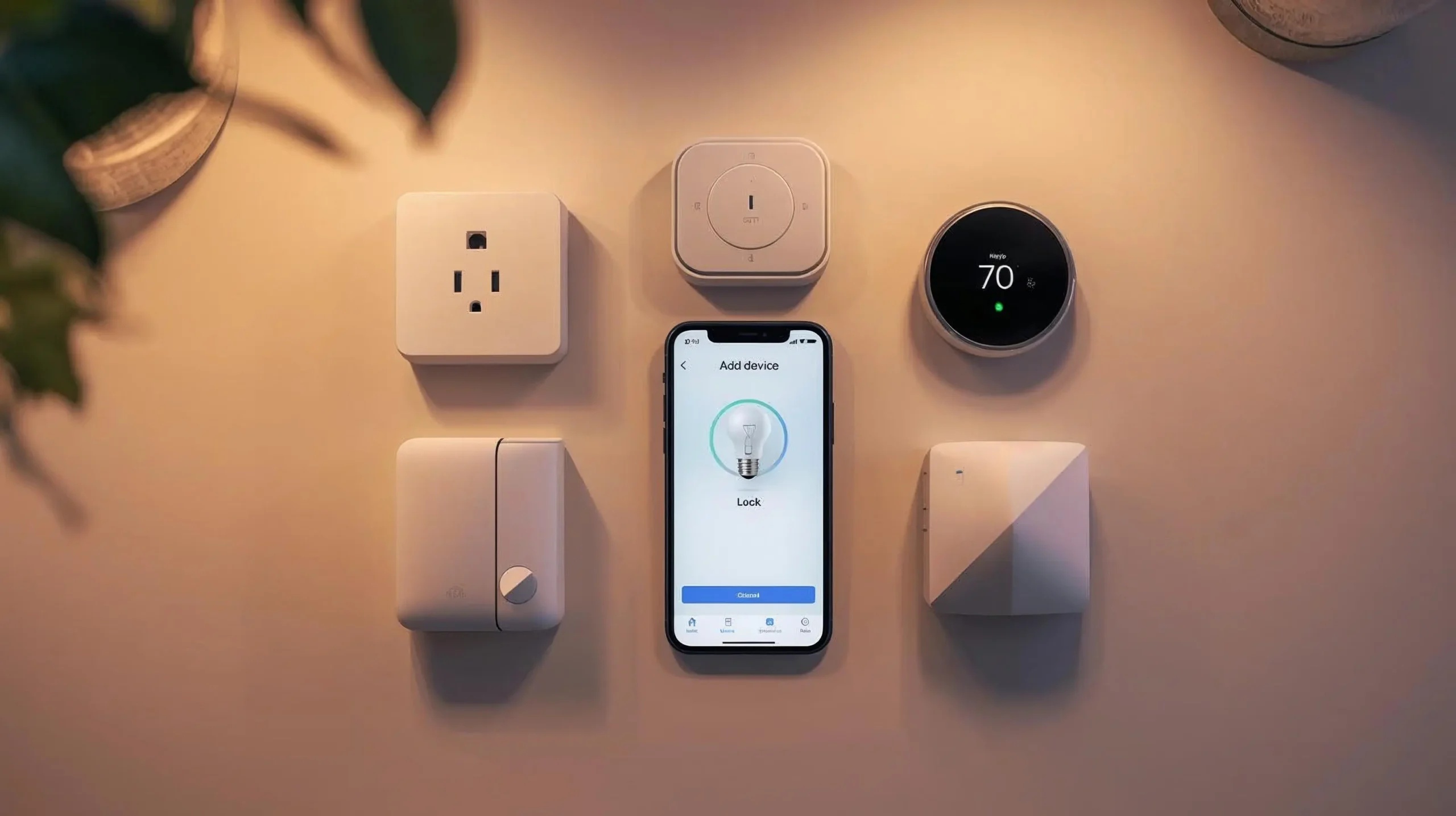
Scope: new Home Assistant Green installations, primarily US households, renters and homeowners. This is not a Linux server build guide, a product comparison, or a claim that WesternTechy physically installed the specific Green hardware described below. Official documentation was checked October 21, 2026. Menus, compatibility and account requirements may change with platform releases. The featured illustration shows generic smart-home equipment, not Home Assistant Green hardware or a verified installation.
What you need before plugging anything in
| Requirement | What to prepare | Reason |
|---|---|---|
| Home Assistant Green | The Green unit, supplied power adapter and an Ethernet cable. | Green ships with Home Assistant OS installed; no manual OS image flashing is needed for ordinary first setup. |
| Home LAN and initial internet | Access to an authorized Ethernet port on a router or switch and an internet connection for first setup. | Green is Ethernet-based and needs to fetch or prepare software during first start. |
| Browser or mobile device | Phone, tablet or computer on the same home network, with access to the official Home Assistant interface. | The setup takes place in the browser or companion app, not through a monitor connected to Green. |
| One low-risk pilot device | A compatible smart lamp, light switch, or other ordinary noncritical device; alternatively explore a software-only integration first. | You can verify entity discovery and control before designing a whole-home system. |
| Owner, recovery and consent | Authorized administrator, secure password manager, space for backups, and permission to connect devices to a shared network. | Property owners and tenants should not assume the same account rights or permission to alter building infrastructure. |
The official Nabu Casa Home Assistant Green getting-started instructions specify Ethernet, local network plus initial internet, a browser or phone, and normal electrical power. The optional HDMI connection is diagnostic, not the way to display the home-control dashboard. Green also has no onboard Wi-Fi, Zigbee, Thread, Bluetooth or Z-Wave radio. Nabu Casa’s connectivity FAQ explains the distinction.
Step 1: start Green without changing a working network
- Choose a dry, ventilated indoor location. Keep the box reachable for service, away from water, excessive heat and tightly packed electronics; follow the product’s operating limits.
- Connect Ethernet first. Attach the included cable to Green and an authorized LAN port on the router or switch; confirm the switch and router are already working.
- Connect its approved power supply. Allow initial preparation to finish; do not repeatedly power-cycle the controller because its welcome page takes time to appear.
- Observe the documented status indicator. Nabu Casa’s Green guide describes the yellow system LED developing a heartbeat blink pattern. Interpret LEDs using the precise hardware manual, not generic router conventions.
- Use another device on the same LAN. Open the local address or discovery flow rather than altering router VLAN, firewall or Wi-Fi isolation settings merely because the first attempt is slow.
The official onboarding documentation notes that initial software preparation can take 20 minutes or longer depending on the network. Start with http://homeassistant.local/ on the local network; if that fails, try http://homeassistant.local:8123/ or the hub’s correctly identified local IP address with the documented port. Home Assistant’s current instructions recognize different HTTP ports depending on installation history. Consult the latest onboarding documentation instead of assuming every older tutorial’s port remains universal.
If the page cannot be reached, confirm that the phone/computer and Green are on an appropriate shared LAN, the Ethernet link has activity, the router assigned Green an IP address, and the first-boot wait has completed. A property-managed or isolated guest network may block local discovery. For deeper authorized troubleshooting, use our Smart Home Wi-Fi Troubleshooting Guide. Do not disable household or building security to make discovery work.
Step 2: create the owner account and protect household access
In the welcome flow, choose a new installation only if this is genuinely the first instance and you do not intend to restore a previous backup. Home Assistant lets an existing installation be restored during onboarding. The first account becomes the owner/administrator. Choose credentials you can recover from your own protected records; Home Assistant onboarding warns that the owner credentials must be stored securely.
- Enter the home’s location and timezone deliberately. They affect sun events, local scheduling, units and home-zone logic. Do not substitute a business address for an actual installation.
- Review optional data sharing. Decide intentionally whether to participate in Home Assistant’s anonymized analytics.
- Finish the discovered-integration screen without accepting everything. Review each manufacturer’s relationship to the correct home and account.
- Separate owner and household access. Create individual logins for people who need access; avoid sharing the primary owner password.
- Enable security measures appropriate to the installation. Home Assistant recommends strong passwords, current software, and multi-factor authentication for protection.
A renter should obtain permission before joining devices to landlord-managed networks, changing building infrastructure or claiming shared accessories as the owner’s own devices. The owner of a hub is not automatically authorized to administer every device visible on the LAN. Our Smart Home Access & Privacy Audit addresses household membership and move-out responsibilities.
Step 3: choose one integration before buying another radio
Visit Settings → Devices & services. This is where Home Assistant lists configured and newly discovered integrations. An integration connects to a brand, service or protocol; a device is a physical or logical product; an entity is a specific reading or controllable function. The official integration tutorial demonstrates this distinction using a software-only Workday integration, which requires no purchased hardware.
For a first physical pilot, choose one lamp or other noncritical device that Home Assistant explicitly lists as supported by the corresponding integration. If the manufacturer requires a cloud account, this connection might not meet a local-only goal. Read the integration’s specific documentation and check whether commands remain functional with the WAN disconnected rather than assuming that because Home Assistant is local, every attached device is.
| What you want to connect | Does Green need added hardware? | Verification before purchase or pairing |
|---|---|---|
| Supported LAN / Wi-Fi devices | Not necessarily. Green uses its Ethernet link to reach compatible devices/services on the LAN. | Check the exact Home Assistant integration, device model, app/cloud dependence and discovery requirements. |
| Direct Zigbee sensors, plugs or bulbs | Yes, if you are not using an existing supported Zigbee bridge. Add a compatible Zigbee coordinator. | Choose between ZHA, another supported setup, and the exact coordinator; pairing changes ownership/network state. |
| Matter over Wi-Fi or Ethernet | No Thread radio solely for that transport; install the supported Matter integration/server and meet network requirements. | Verify the Matter logo, network reachability, supported device class and commissioning procedure. |
| Matter over Thread | Requires a functioning Thread network with at least one compatible border router; it need not be inside Green. | Identify the correct Thread border router and credentials. A Thread logo by itself does not prove Matter compatibility. |
| Z-Wave devices | Requires an appropriate Z-Wave controller/radio if directly including devices. | Verify regional radio-frequency and exact adapter compatibility; do not buy a US-radio controller for another region. |
| Bluetooth devices | Green does not include Bluetooth; supported USB hardware or Bluetooth proxy may be required. | Confirm integration range, supported radio/proxy model and network placement. |
Zigbee and Thread: avoid the most common hardware assumption
Home Assistant Connect ZBT-2 is an officially supported option for adding a Zigbee or Thread radio to a compatible Home Assistant system. But it cannot operate as a Zigbee coordinator and a Thread border router simultaneously; Nabu Casa explicitly rejected unstable multiprotocol operation. To run both through Home Assistant-controlled radios, plan separate compatible hardware paths. The official ZBT-2 documentation is the authoritative source; do not rely on outdated articles about previous multiprotocol experiments.
If you already have a compatible Thread border router from another ecosystem, it may provide the network needed for Matter-over-Thread. The setup is not automatically identical across Apple, Google or Home Assistant; refer to the Home Assistant Thread documentation and Matter integration instructions for current commissioning, local IPv6, mDNS, credentials and supported installation types. You do not need to convert a healthy Zigbee system just to say it is “Thread ready.”
Step 4: build one reliable automation, not a showcase
The first proof-of-use should have a plain outcome, like “turn a supported table lamp on during an ordinary evening time window and leave its manual control working.” This is intentionally less ambitious than linking occupancy sensors, security alerts and remote access on day one. Use the graphical automation editor after adding a genuine controllable entity.
| Part of the first routine | Example | How to judge it |
|---|---|---|
| Target | One supported table lamp or smart plug controlling a manufacturer-approved lamp. | Operate it first with its ordinary physical control and supported app; note the exact entity name. |
| Trigger | A chosen evening time or supported sun event. | Set or adjust the test time safely; confirm the hub timezone is correct. |
| Condition | A simple permitted schedule/day filter, if your selected editor supports it. | Check that the action does not occur when a condition is false; do not assume every trigger type supports the same options. |
| Action | Turn the intended lamp on; arrange a controlled off state. | Confirm the right entity changes, not a similarly named kitchen or hallway light. |
| Fallback | Physical lamp control works without the dashboard. | Household members can recover without app access or owner credentials. |
Home Assistant has an official first-automation tutorial for visual setup, so this Guide does not invent YAML commands or unsupported menu sequences. For a thorough pass/fail method, use our Automation Planning & Testing Worksheet. Do not pilot with door-lock emergency access, smoke/CO alarms, required ventilation, portable heaters or high-load appliances.
Step 5: secure access without exposing the controller
A new installation is normally reachable over the local home network. Remote control is an optional later step, not part of making the first local routine work. Home Assistant’s remote-access documentation recommends Home Assistant Cloud for most users or a correctly configured VPN; it also documents advanced alternatives. Do not casually open router ports and assume a guessed password or bare HTTP connection is sufficient protection.
Home Assistant Cloud is a separate optional subscription that can provide remote access and selected voice-platform services. A local Green installation and local compatible integrations do not require this subscription merely to run at home. Home Assistant itself may still integrate cloud-dependent devices, so “controller local” and “every function offline” are not interchangeable. Refer to Home Assistant Cloud documentation and security checklist.
Step 6: make a recoverable backup before expanding
Once the owner account, one integration and one routine are functioning, visit Settings → System → Backups and configure the supported backup process. Download and securely store the encryption emergency kit separately. The official Home Assistant backup instructions recommend copies on a different system and preferably off site. A backup stored only on the same Green unit might be inaccessible when its storage fails.
- Confirm that a manual backup can be created and that you understand where it is stored. Do not assume a schedule has run successfully merely because it was enabled.
- Record the date, backup location, software version and secure location of the recovery kit, but not the encryption key itself in shared notes.
- Configure a schedule suited to your changes, plus supported pre-update backups where appropriate; adjust retention to available storage.
- Remember that restoring on different hardware may require distinct radio migration steps. A Home Assistant application backup does not guarantee every USB Zigbee or Z-Wave network transfers to a replacement radio.
Our Hub Backup & Recovery Guide explains controller and radio-network migration, while our Firmware Update Safety Checklist covers changes after the first installation. Do not factory-reset your healthy Green just to practice restoring a backup.
Acceptance test: can the first local setup be trusted?
| Test | How to run it | Acceptable outcome |
|---|---|---|
| Open the dashboard locally | Use the browser or companion app on your authorized LAN. | The expected home and owner account appear without relying on an unknown third party. |
| Manual device control | Operate the pilot lamp through its normal physical controls. | The lamp remains usable if the dashboard or internet is unavailable. |
| Device integration | Send a harmless command from Home Assistant and inspect a fresh resulting state. | The correct device responds, and recent changes are visible. |
| Automation positive case | Trigger the actual time/event with applicable conditions met. | Only the intended lamp/action occurs. |
| Automation negative case | Make the optional condition false and produce the event again. | The action is blocked when it should be. |
| Internet versus local control | Where safe and authorized, distinguish a temporary WAN outage from loss of local LAN; do not disrupt other occupants. | Your expectations match the true integration’s cloud/local dependencies. |
| Normal restart | Use the supported system restart at a convenient time, not unplugging during updates. | Home Assistant returns and the tested function remains configured. |
| Backup availability | Confirm the backup exists away from the controller and the authorized owner knows how to find its emergency kit. | There is a documented recovery starting point. |
Do not attempt “failure testing” by disabling building-managed access, fire alarms, medical equipment, thermostats serving vulnerable occupants or emergency functions. A household needs independent safety and manual controls even when the controller works perfectly.
Troubleshooting the most common first-day problems
| Symptom | Start here | Avoid |
|---|---|---|
| Green not reachable at the familiar local hostname | Check first-boot wait, Ethernet, router-assigned IP, and documented current/legacy local ports. | Factory-resetting a unit that is still downloading initial software. |
| No Zigbee device detected | Check whether a supported coordinator exists, the selected Zigbee integration, and whether the accessory is actually in pairing mode. | Assuming Green includes an internal Zigbee radio. |
| Matter-over-Thread commissioning fails | Check border-router reachability, credentials, IPv6/mDNS LAN path, and phone platform commissioning requirements. | Treating a Thread logo as proof of Matter or moving all devices to a blocking guest network. |
| App works but home automation does not | Identify actual entity, trigger, condition, target and whether the platform uses a cloud integration. | Adding more sensors or resetting the router before testing the simplest action. |
| Remote app cannot connect away from home | Confirm whether remote access has been configured safely; local reachability is not a public URL. | Opening router ports without the official security guidance. |
| Restore or backup key is missing | Check the protected recovery-kit location and vendor-supported options before attempting restore. | Assuming an encrypted backup can always be decrypted without its correct key. |
A one-room plan for renters, homeowners and property managers
A renter who controls their own router can usually begin with a portable Green and reversible plug-in devices, subject to building permissions. A homeowner can extend to dedicated radios, but should document network, controller and household responsibilities before installing permanent controls. A property manager needs an explicit separation between property-owned equipment and tenant account access, including a turnover protocol. Our Device Inventory & Account Transfer Tracker helps record ownership and access, without requiring readers to disclose passwords.
The point of running local infrastructure is not accumulating protocols. It is delivering a more recoverable and understandable home. If a single light and a supported schedule remain dependable for a week, the next device is a reasoned expansion. If the first integration is already unreliable, adding Thread, Z-Wave or another cloud layer multiplies the difficulty instead of solving it.
Where to go next
- Local & Self-Hosted Smart Home hub — the full pathway.
- Best Smart Home Hubs & Controllers — compare Green with Hubitat, SmartThings, Aqara and Homey.
- Smart Home Compatibility Matrix — document exact models, transports and controller requirements.
- Wi-Fi, Matter & Thread Troubleshooting — discovery and networking.
- Reliable Automation Design — triggers, conditions and manual fallbacks.
- Hub Backup & Recovery — protect your configuration and radio networks.
Primary sources and editorial method
Checked 21 October 2026: Nabu Casa: Home Assistant Green setup; Green onboard-radio FAQ; Home Assistant onboarding; Adding integrations; Connect ZBT-2 protocol limitations; Matter commissioning; Thread prerequisites; First automation tutorial; Backups; Remote access; and Security guidance. WesternTechy contributes the deployment decision matrix and commissioning acceptance tests; the Guide does not report independent laboratory or hands-on testing of Green, radios or connected products. Recheck the manufacturer instructions before making configuration or ownership changes.