
A label can say “Matter,” “Thread,” “Zigbee,” or “works with Alexa” and still leave you with a device that cannot perform the task you bought it for. A compatibility check must cover the exact product revision, its connection method, the controller you own, the features your platform exposes, and who can manage the device when the home changes hands.
Quick answer: choose your preferred app or controller first, write down the exact model and hardware revision, then confirm its radio/network requirements and required functions against current manufacturer documentation. A logo is an important clue, not a complete installation or feature guarantee. This reference is a research and purchasing worksheet for renters, homeowners, and landlords; it does not claim that WesternTechy has bench-tested every listed combination.
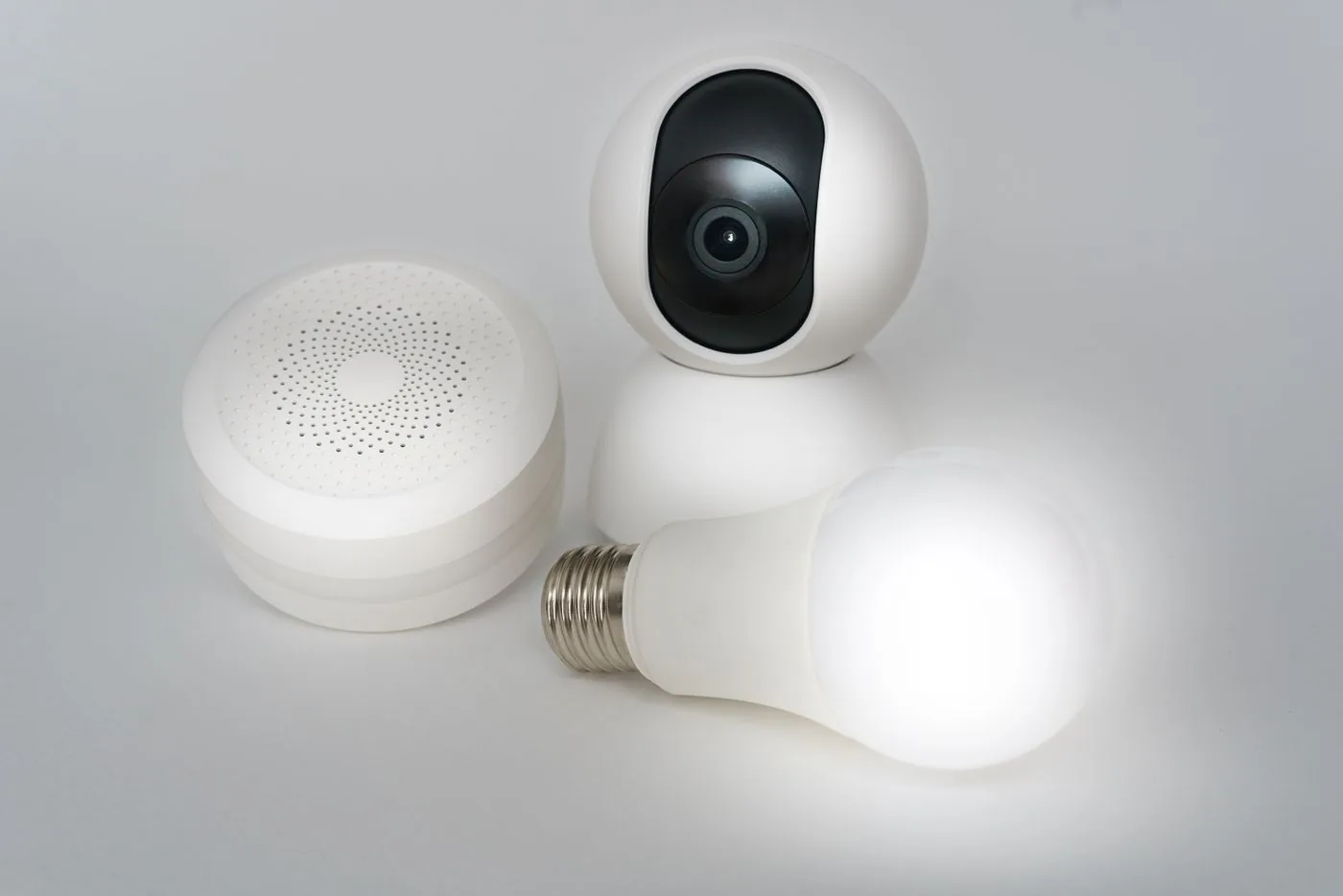
The compatibility matrix: what each label actually requires
This table describes normal consumer setup paths. A specific certified product, bridge, firmware version, or ecosystem may add restrictions; use the manufacturer’s model-specific support page as the deciding reference.
| Device label / path | What the device needs | What to verify before purchase |
|---|---|---|
| Ordinary Wi-Fi smart device (not Matter) | Compatible Wi-Fi band and the maker’s supported app or cloud/local integration. | Exact band, app region, account requirements, internet dependence, and the specific feature supported in your preferred ecosystem. “Voice control” is not proof of Matter certification. |
| Matter over Wi-Fi / Ethernet | A Matter-capable controller and a suitable local network; setup typically uses a phone with Bluetooth. | Both device type and function supported by your actual platform; model/firmware, local IPv6/discovery, Wi-Fi band and multi-admin process. No Thread border router is required solely for a Wi-Fi device. |
| Matter over Thread | A Matter controller, an operational Thread network, and a Thread border router linking Thread to the rest of the home network. | Matter and Thread support on the product, compatible border-router availability, controller device type, network credentials and commissioning. The Thread logo alone does not imply Matter. |
| Zigbee | A Zigbee coordinator or manufacturer bridge that supports the exact device. | Model, Zigbee profile/cluster support, firmware, bridge compatibility, expected entities and any device-specific handler. A Zigbee radio is not a Matter controller. |
| Z-Wave | A Z-Wave controller/radio suitable for the device’s regional frequency and supported command classes. | Country-specific SKU, certification listing, secure inclusion, exact device features, and whether SmartStart is supported by both controller and device. |
| Manufacturer bridge exposed through Matter | Supported devices paired to their bridge, the bridge connected and updated, and a Matter controller. | Which bridged child devices and functions the maker exposes; a bridge does not automatically make every accessory or proprietary feature available in every app. |
Start with authoritative directories: the Connectivity Standards Alliance certification search for Matter/Zigbee entries and the Z-Wave Alliance product directory. Certification establishes specific conformity; it does not replace checking the receiving platform’s current supported device types and features. CSA’s Matter FAQ identifies supported use cases and the underlying transports.
Check compatibility in five layers
1. Capture the exact identity, not just the brand
Record the printed model, hardware revision, market/region, current firmware and product type. Two devices sold under the same family name may differ in radios, certification or features. Compare the exact SKU and revision with the manufacturer’s regional datasheet, release notes and supported-platform page before adding a “compatible” label to your shopping list.
A concrete example is TP-Link’s KP125M support page, which offers multiple hardware-version selections. Its August 2026 V1.6 firmware notes add Matter energy reporting while warning that receiving apps do not all implement the feature. This is a version-specific published claim, not evidence that every KP125M revision, every region, or every Matter app will show the same history and readings.
2. Separate the control standard from the network
Matter is an application/control standard; Wi-Fi, Ethernet and Thread can carry it. Thread is a network, not proof that the product speaks Matter. Zigbee and Z-Wave use different radios and controllers. A voice-assistant integration may instead use the manufacturer’s account or cloud and need not expose the same controls as direct Matter pairing. Home Assistant’s Matter documentation explicitly warns that some Thread devices use non-Matter protocols.
If you own a Matter-over-Thread sensor, list both its Matter controller and the actual Thread border router. If you own a Zigbee sensor, identify the supported coordinator/bridge; if you own a Z-Wave lock, identify the appropriate regional adapter and supported security process. Buying a generic “hub” without identifying which role it fills can leave a critical component missing.
3. Test the feature you require, not merely pairing
Being able to turn a smart plug on in one app does not prove that the same app can read live watts, retain a kWh history, display multi-outlet endpoints, change power-protection settings, or install firmware. Camera storage, lock access codes, sensor occupancy, and dimming scenes can similarly vary between platforms and integrations.
TP-Link’s ecosystem feature matrix distinguishes basic Matter on/off control from energy-monitoring and vendor-only functions and notes that firmware, device category, and the receiving app matter. For a feature-led purchase, write down where the vendor explicitly supports that feature, not only where it supports pairing.
4. Verify the real network, household, and owner
Matter commissioning and local discovery can fail if the controller, phone and device cannot communicate on the network. For troubleshooting see our Wi-Fi, Matter and Thread Guide rather than disabling router security indiscriminately. For shared households, distinguish a platform’s invited user, manufacturer account and Matter multi-admin sharing. These are not identical permissions.
Before move-out or property transfer, identify which person controls the primary account, subscriptions, recording access, guest invitations and recovery process. The Device Inventory & Account Transfer Tracker can record responsibility without storing passwords, access codes, or private account identifiers.
5. Confirm physical fit, power, safety, and permissions
Network compatibility cannot settle outlet voltage, plug shape, current limits, protected loads, thermostat wiring, lock-door geometry, camera placement, or lease conditions. A renter-friendly label is not a guarantee of residue-free removal. Consult the manufacturer’s installation instructions; request permission for restricted alterations. Do not assume that a plug’s numerical rating alone makes unattended heating, cooking or critical loads safe to automate.
Worked examples: how a model-level answer differs from a logo
Example A: a Matter smart plug with energy monitoring
Write “TP-Link KP125M (US), exact hardware revision ___, firmware ___, receiving app ___.” Confirm product identity and radio requirements in the manufacturer overview, then check the relevant hardware-version firmware notes and app feature table. Do not mark energy history “supported” solely because the device has a Matter logo or the maker’s own app displays it.
Example B: a battery Thread sensor
Check whether its packaging and official listing specify Matter over Thread or a different Thread-based protocol. Then list the actual border router and Matter controller, confirm that the controller supports the sensor type, and check the pairing workflow. See the Thread Group’s border-router explanation and Google’s controller/border-router distinctions. A Thread-capable phone is not a blanket substitute for every home-controller requirement.
Example C: a Zigbee motion sensor or Z-Wave lock
For a Zigbee sensor, name the bridge or coordinator and check the expected motion, battery and occupancy entities. Home Assistant ZHA explains that there is no universal out-of-box device list and that model-specific quirks may be needed. For a Z-Wave lock, check the certification directory, region and adapter support, then follow Z-Wave JS inclusion guidance if that is your chosen platform. SmartStart is a per-device capability, not automatic for all Z-Wave products.
Copy this compatibility record for every device
Keep this as a model-level worksheet. “Unknown” is an honest status until confirmed; do not store passwords or pairing codes in a shared checklist.
| Record field | Enter/check |
|---|---|
| Device and intended job | ________ / what must it do? |
| Model, hardware revision, region | ________ |
| Firmware and verification date | ________ / ________ |
| Network / protocol | Wi-Fi / Matter over Wi-Fi / Matter over Thread / Zigbee / Z-Wave / bridge |
| Controller and bridge/border router | Exact model and role: ________ |
| Required feature in receiving app | ________ / manufacturer evidence link: ________ |
| Physical rating and permission | Verified / unknown / not applicable |
| Primary account and handover owner | Role only: ________; no credentials |
| Decision | Verified / needs check / incompatible for this specific job |
A five-minute pre-purchase decision
- Confirm exact product revision and regional SKU, not just a marketing family.
- Check the manufacturer datasheet, firmware notes and certification entry.
- Draw the device → network → controller → app path and mark any missing component.
- Confirm the specific feature you actually need in that app, not merely “works with.”
- Check firmware and region-specific setup requirements before buying accessories in bulk.
- Verify power/load, installation permission, account ownership and move-out process.
- If any critical item remains unknown, buy one unit for a permitted, low-risk setup before committing to the whole household; that is a proposed verification step, not WesternTechy claiming it tested your setup.
After verifying compatibility, use the Planning Checklist to define your priorities, then the Budget Calculator for one-time and recurring costs, and finally the Inventory Tracker for ownership and transfer.
Primary references and editorial method
This is a documentation-led cross-platform reference, reviewed September 2026. It is not a certification laboratory, a tested-device database, a promise of universal support, or a substitute for model instructions. Product firmware and platforms change; recheck a vendor’s current support page before purchasing.
- CSA: certified products directory and Matter FAQ.
- Thread Group: border router versus hub.
- Z-Wave Alliance: product directory.
- Home Assistant Matter, Thread, Zigbee ZHA and Z-Wave JS documentation.
- Apple: Matter accessory setup and Google: Matter hub requirements.
- TP-Link: ecosystem feature differences and KP125M hardware-version support and firmware releases.