
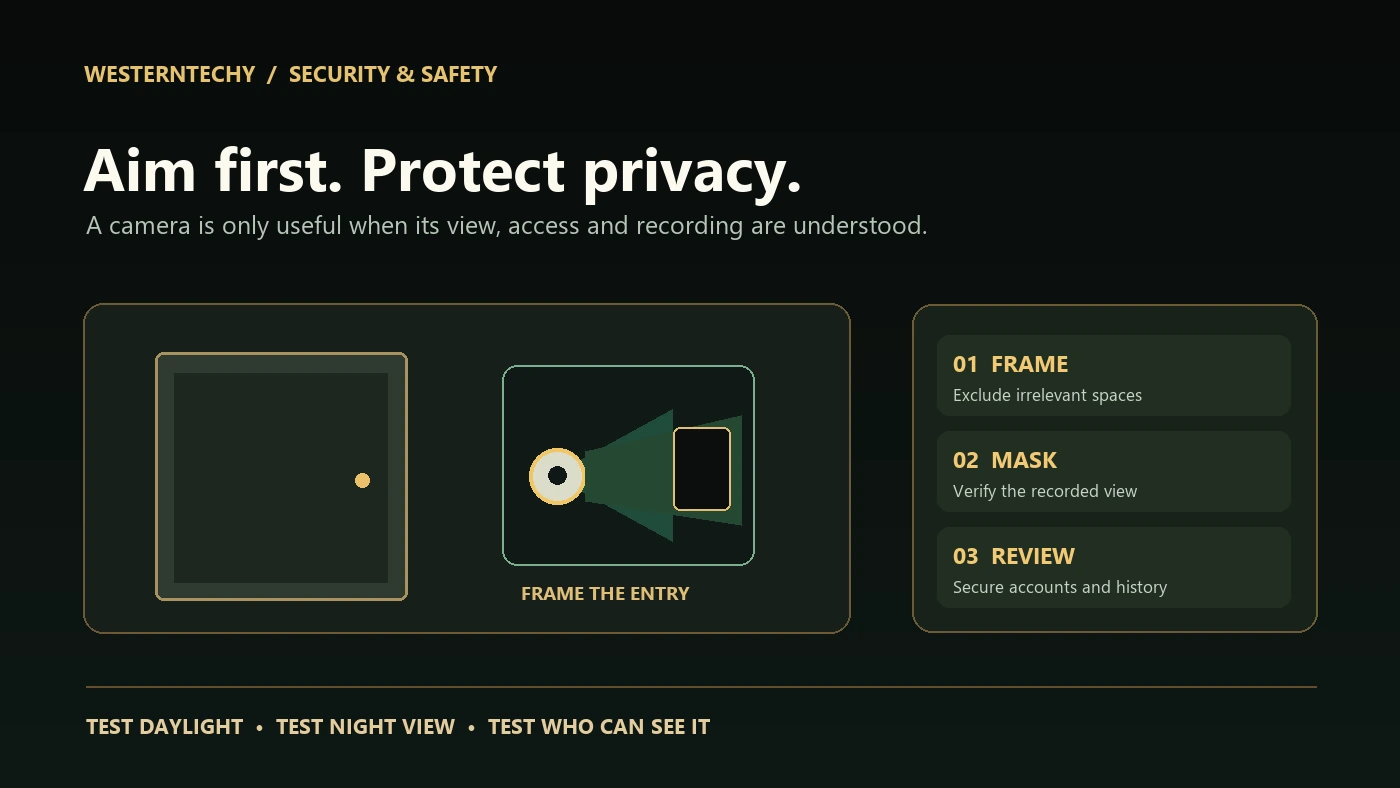
A camera can show a clear live view and still be a poor installation: the porch light washes out a visitor at night, the Wi-Fi drops during an event, a notification zone is mistaken for a privacy mask, or a previous household member retains access. A useful security-camera setup begins by deciding what needs observing, who may view it, and what should never be captured.
This guide covers planning, reversible mounting, camera and router security, recording choices, alerts, privacy and a practical acceptance test. It applies to renters and homeowners, but each product, region and building can impose different requirements. It is based on manufacturer and consumer-security guidance, not a claim that WesternTechy physically tested every camera or mount.
Start with the scene—not the camera’s marketing claims
Walk through the intended location before buying or mounting anything. State the specific job: see a visitor at the front door, check an entryway after an alert, or review motion at a private gate. Sketch the desired field of view and identify neighboring windows, shared corridors, other residents, and areas where recording would be intrusive. Decide who owns the camera and whether everyone affected understands how it is used.
Positioning and consent can be more important than claimed resolution. Google recommends checking actual live and recorded video, considering backlighting, obstructions, Wi-Fi range and infrared reflections. An indoor camera pointed through window glass can suffer glare or degraded night vision. Do not assume a wider lens produces identifiable details at every distance; test the actual scene at the intended location. See Google’s camera-placement guidance.
| Plan item | Check before installation | Typical concern |
|---|---|---|
| Purpose and field of view | Which doorway or private area must be visible? | Capturing irrelevant shared/private spaces. |
| Lighting | Check daylight, porch light and night view. | Backlighting or infrared reflection. |
| Power | Approved battery, outlet or wired supply? | Unapproved adapters or poor cable routing. |
| Network | Does the exact installation spot have usable connectivity? | Offline video and delayed alerts. |
| Mount | Permission, surface, weather rating and safety tether? | Surface damage, falls or tampering. |
| Ownership | Who can view, configure and remove recordings? | Unwanted household or cloud access. |
Choose a mounting and power method that fits the property
Renters: keep the installation reversible and approved
Before drilling, replacing a doorbell or attaching equipment to shared property, obtain any required landlord or property-manager approval. A shelf or compatible manufacturer-approved stand may work for an indoor camera. For a door-facing unit, verify that a removable mount is permitted, physically secure and compatible with the exact device; adhesive alone is not a universal safety solution. Keep the original fixtures and document condition before and after installation.
Consider whether the camera overlooks a shared corridor or another unit. Do not assume that a landlord’s permission alone resolves neighbors’ privacy, audio recording, building rules or local requirements. For a permanent or mains-electrical installation, use the appropriate qualified professional. Our Renter Installation & Move-Out Checklist helps document permissions and restoration.
Use the correct indoor/outdoor hardware
Verify the model’s allowed orientation, environment, operational temperature and weather rating. Do not expose an indoor camera, cable or adapter to outdoor moisture. Secure mounting hardware to a suitable surface according to manufacturer instructions; the appropriate screws, anchors, tether and mounting height depend on the device and material. A high mount that looks tidy can complicate charging and reduce detection performance. Google specifies a particular placement range and secure loop for its Nest Cam (battery), but that is a product-specific instruction, not a dimension to copy to another brand. See its mounting documentation.
For battery equipment, confirm charging access, battery expectations and whether features change when it runs on battery alone. For a wired device, route cables without trip hazards, crushing, unapproved extensions or door damage. Do not assume a camera supports 24/7 recording, local storage, power-over-Ethernet or solar charging merely because a product family does.
Prove signal and image quality before making the mount permanent
Pair the camera in the intended home and update its firmware using the official app. Check the live view from the intended final position while the camera is temporarily supported safely. Inspect the device’s connection status and test in ordinary household network conditions. Reconnect only the affected component if something fails; do not repeatedly factory-reset working devices or weaken network security as a first troubleshooting step.
At daylight, dusk and night, check subject detail, glare, shadows and how the camera handles nearby reflective objects. Walk the actual path and inspect a saved event, not just the live stream. Test notification timing and whether the person or package remains visible when needed. For a battery camera, frequent motion across a busy street can affect event activity and battery usage; narrower framing may help, but privacy still has to be reviewed separately.
If a camera is behind glass, check daytime reflections and night infrared behavior explicitly. If Wi-Fi drops only at the mounting point, consider placement or approved network improvements rather than claiming the camera is defective. Our Wi-Fi and smart-home network troubleshooting Guide describes a reversible diagnostic order.
Secure the camera account, app and network
Use a unique account password, enable multifactor authentication when available, update the camera and app, and review who can access the feed. The U.S. Federal Trade Commission recommends securing the router, updating firmware, protecting cloud accounts and checking the camera’s encryption. Where available, use WPA2/WPA3 on the Wi-Fi network and consider suitable network separation. A separate IoT/guest segment needs a compatible setup: some local discovery or hub functions will not cross an isolated network automatically. Read the FTC camera-security checklist and our home-access audit.
Confirm whether the camera or app exposes local accounts, shared-user roles, guest access or remote viewing controls. Prefer the manufacturer’s supported invitation process over distributing one owner’s password. Turn off unused capabilities and review linked voice assistants or third-party services. A camera that is “local” still needs security updates, account controls, backup plans and careful remote-access configuration.
Do not confuse Activity Zones, Motion Zones and Privacy Zones
These settings sound similar but can serve different purposes. The key test is whether the sensitive area is still visible in the live stream and saved footage—not merely whether an alert is suppressed. A shaded notification region is not necessarily a mask. Feature names, availability and recording rules vary by manufacturer, camera generation, firmware and recording mode.
| Control | What it is intended to change | Privacy question to test |
|---|---|---|
| Activity / notification zone | Which events are identified, saved or notified under the model’s configured rules. | Does the live or retained frame still show the sensitive area? |
| Motion zone | Where motion is considered for detection or notification. | Does the camera still see or record outside it? |
| Privacy mask / zone | Hide a selected portion of the scene on supported equipment. | Is the area hidden in live view and recordings after restart? |
| Recording / audio toggle | Whether recording or audio capture is active in the configured mode. | What is retained when the toggle is changed? |
Google Nest example: Google’s Activity Zones help organize notifications and events, but Google’s Activity Zones documentation says that creating a zone does not crop the camera’s video feed: the camera continues streaming its full view. Separate event-recording settings can change which detected event clips are saved, depending on model and configuration. Do not promise that drawing an activity zone hides a neighbor’s window or removes all history from that area.
Ring example: Ring’s Privacy Zones block selected portions of live and recorded video on supported models; Ring also says motion may still be detected behind a masked portion and warns that moving the camera changes what the mask covers. Ring Motion Zones serve a different detection purpose. Some older and pan/tilt products do not support the cited Privacy Zone feature. Verify the exact model instead of applying instructions from a different Ring product.
Whenever repositioning, zooming, changing the app or resetting a camera, recheck the actual privacy result. A privacy mask cannot resolve every issue of placement or consent. The more reliable approach is to aim the lens away from private areas first and use model-supported controls only for what remains.
Decide what gets recorded and who can retrieve it
Answer four questions in the manufacturer’s current app: Is video stored locally or in the cloud? Are clips event-based or continuous? How long is history retained under the actual plan? Who can download, share or delete footage? A live stream alone does not establish that history is being saved; a subscription name alone does not establish support for 24/7 recording on a battery camera.
Google’s video-history reference distinguishes event and continuous history by exact camera generation, power arrangement and plan. For example, a battery-powered camera’s continuous recording options can differ from its wired mode. Treat subscription names, price and retention periods as changeable; document the settings and checked date instead of copying an evergreen number from a comparison table.
Test an actual saved event and its playback, then locate the deletion and sharing controls. Verify whether turning off a camera, silencing an alert or canceling a subscription actually affects already-saved footage. Limit downloaded clips and access permissions to what is needed. If a person requests correction or removal, follow the applicable policy and law instead of assuming that deleting a device tile deletes the cloud account and every copy.
Make notification settings useful without constant monitoring
Choose notifications for the specific purpose: person at an entrance, package in a doorbell view, or motion within a private gate. Watch daytime, night and weather-related events and distinguish false notifications from real misses. Activity classification is an aid, not a safety guarantee; small or fast-moving subjects, occlusion, darkness and poor connectivity can affect results. Check detection and clip settings rather than relying on a push-alert count.
For shared households, agree who receives notifications and what is acceptable to record. Do not make a camera a proxy for unconsented occupancy tracking. Avoid pointing indoor cameras at sensitive spaces, and consider disabling audio if it is unnecessary and the model supports it. Audio recording and consent rules vary by location; check applicable requirements rather than assuming video-only rules govern microphones too.
A seven-step acceptance test before relying on the setup
- Daylight view: position a willing participant in the intended area and review the actual stream and saved event for useful detail.
- Night view: repeat under ordinary porch and street lighting; check glare, IR reflection and obscured areas.
- Privacy: inspect what the camera shows beyond the intended scene; verify any privacy mask in live view and in a saved clip.
- Notification: walk in and out of the intended detection area, then test the false case outside it.
- Network and power: check the real signal at the installation point and expected response to a brief, safely controlled outage.
- Access: inspect owner, shared users, linked services and MFA; verify that an invited person receives only intended permissions.
- History and handover: locate recording settings, retention, deletion, subscription and account-release instructions; record the next review date.
Repeat this test after a firmware upgrade, camera move, router replacement, changed subscription or household handover. Never simulate a security incident or tamper with shared building systems to test a camera. These checks are about expected household use, not a certification of protection against theft or emergency events.
Troubleshooting without losing evidence or making privacy worse
| Symptom | First useful check | Avoid |
|---|---|---|
| Live view works but there is no clip. | Current recording mode, event filters, plan and account. | Assuming every alert is saved. |
| Night image is washed out. | Nearby light, reflective surfaces and lens position. | Making permanent mount changes before a test. |
| Missing or late notifications. | App permissions, detection zone, network and battery. | Turning on every alert without diagnosing. |
| Wi-Fi fails at final mount. | Signal at the location, power, router and supported band. | Weakening encryption or resetting everything. |
| Neighbor’s window remains visible. | Physical angle and model’s true privacy-mask behavior. | Calling a notification zone a privacy mask. |
| Former household member can view feed. | Sharing, connected services and owner account. | Changing only a device nickname. |
If theft, suspected account compromise or unwanted disclosure is involved, preserve relevant information and follow the maker’s security or support channels. For ordinary network issues, use the network checklist; for access removal or move-out, use the access-and-handover Guide.
Print or copy the installation and privacy record
| Record | Fill in privately |
|---|---|
| Exact camera model / firmware / home | ____________________________ |
| Purpose, location and consent/approval | ____________________________ |
| Desired view and areas intentionally excluded | ____________________________ |
| Mount, power, weather rating and restoration plan | ____________________________ |
| Network/controller and owner role | ____________________________ |
| Night, privacy mask and notification tests | ____________________________ |
| Recording mode, storage/plan and deletion procedure | ____________________________ |
| Shared users, MFA, support/update date | ____________________________ |
| Fallback and next review date | ____________________________ |
Do not paste passwords, verification codes, full device serials or exact private addresses into a shared worksheet. A camera should be easy to maintain and remove as well as easy to view. For model comparisons after determining your requirements, visit our security-camera Buying Guide or video-doorbell comparison; those articles must distinguish research-only information from physical testing.
Official references and editorial scope
- U.S. Federal Trade Commission: securing home security cameras; connected-home/router security.
- Google Nest: planning camera placement; mounting Nest Cam (battery).
- Google Nest: Activity Zone behavior and full field of view; video-history recording models and modes.
- Ring: Privacy Zones, audio, supported models and limitations.
Editorial note (reviewed September 27, 2026): This is a documentation-based installation planning Guide, not a hands-on test or a substitute for exact manufacturer instructions, professional installation or jurisdiction-specific legal advice. Privacy, audio, mounting, subscription and security features vary by model, firmware and region. Obtain permissions and check local laws and building rules before installing or recording.