
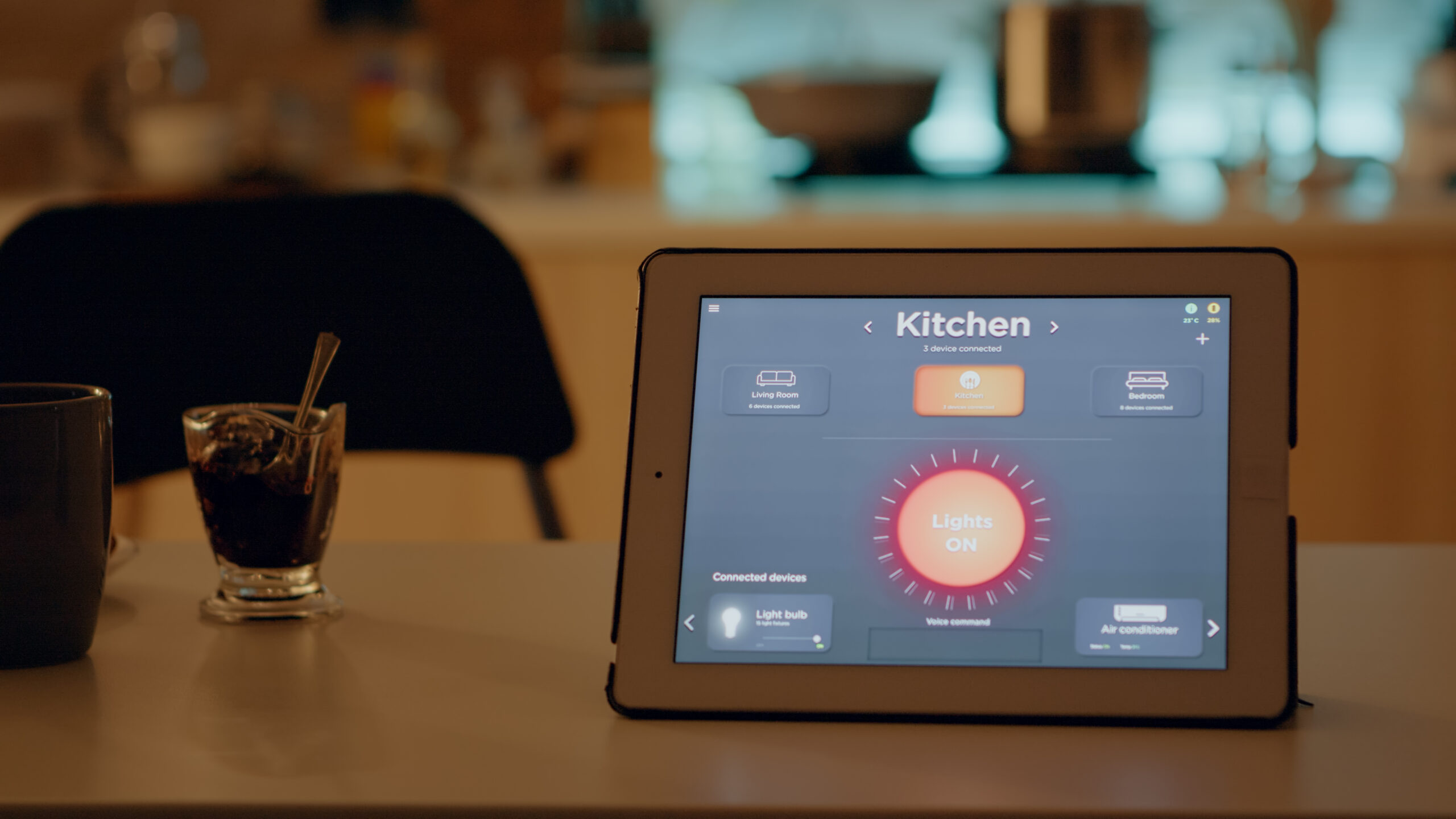
Quick answer: an accessible smart home should not depend on one perfect input method. A light, lock, thermostat or routine is easier to live with when the person can use the control method that works for them at that moment, whether that is a physical switch, a phone, a screen reader, voice control, a button, a remote or a trusted helper.
The most important design rule is redundancy. Voice can be useful, but voice-only is fragile. Apps can be powerful, but app-only control can exclude someone when the phone is unavailable, difficult to navigate or out of reach. Automation can reduce repeated physical tasks, but it should fail in a way that leaves the home understandable.
Editorial scope: this guide is about usability and smart-home planning, not medical treatment or a claim that one product is suitable for every disability. Accessibility needs are individual. Building-code and housing requirements also vary by jurisdiction. WesternTechy uses current Google accessibility guidance, W3C input-method principles and U.S. Access Board material as design references, not as a claim that every private home is legally subject to the same standard.
Start with the person and the task, not the gadget
Do not begin by asking, “Which smart-home ecosystem should we buy?”
Begin with a real task:
- turning bedroom lights on from bed
- unlocking a door without manipulating a small key
- adjusting the thermostat without reaching a difficult wall location
- checking whether the front door is locked
- operating blinds without pulling cords
- knowing whether a leak sensor is alerting
- turning off several lights before sleeping
- letting a trusted person help without giving them every account password
Then ask what makes the current task difficult and which control methods reduce that difficulty.
The answer might be automation. It might also be a better physical switch, a remote control, a more reachable thermostat, larger buttons or a simpler routine.
Design for more than one input method
W3C accessibility guidance for digital interfaces emphasizes supporting different input mechanisms rather than forcing one complex gesture or input method. The same design principle is useful in a smart home.
A strong setup might allow a light to be controlled by:
- the ordinary wall switch
- a large wireless button
- the smart-home app
- a screen reader
- a voice assistant
- a scheduled or sensor-based automation
Not every device needs all six. The goal is to avoid a single point of human interaction failure.
Voice control can reduce physical effort, but it should not be the only control
Voice can be valuable when reaching, gripping or navigating a touchscreen is difficult.
Google’s current accessibility guidance lists voice commands as one way to control compatible smart-home devices. Google Home also supports the Android TalkBack screen reader and other operating-system accessibility features in the Home app.
But voice control can fail for ordinary reasons:
- the room is noisy
- speech is difficult or tiring
- the assistant misunderstands the command
- the internet or cloud service is unavailable
- the microphone is muted
- the wrong room or device has a similar name
Keep another control method available for important devices.
App control should work with the phone’s accessibility features
If a resident relies on a screen reader, text scaling, switch access, voice access or another mobile accessibility feature, test the actual app before buying a large number of devices.
Google states that the Google Home app supports TalkBack on Android, text-size adjustments, contrast-related display features and other operating-system accessibility options.
That is useful, but it does not guarantee that every third-party device app is equally usable.
For each product that requires an app, test the tasks that matter:
- signing in
- finding the device
- turning it on or off
- reading current status
- changing a schedule
- managing a household member
- responding to an alert
- recovering the account
A beautiful setup screen is not enough if the everyday controls are hard to use.
Physical controls still matter in an accessible smart home
Smart-home design sometimes treats the wall switch as a legacy device that should disappear.
That can be a mistake.
A well-positioned, easy-to-operate physical control can be faster and more reliable than opening an app or issuing a voice command.
The U.S. Access Board’s guidance for accessible operable parts gives useful design principles for controls such as switches and thermostats. It discusses reachable controls, clear approach space, and operation without tight grasping, pinching or twisting of the wrist.
Those legal criteria do not automatically apply to every private residence. But the usability ideas are valuable when choosing or placing controls.
Prefer controls that do not demand fine motor precision
A tiny recessed button, stiff rotary knob or long-press gesture can be difficult for people with limited dexterity, tremor, weakness or pain.
Where practical, prefer controls with:
- larger targets
- clear tactile feedback
- simple press actions
- no need for simultaneous button combinations
- no need to hold a button for an exact duration
- clear state feedback
W3C guidance similarly recommends alternatives to complex pointer gestures in digital interfaces.
For a smart home, the same thinking can inform wireless buttons, remotes, wall keypads and app layouts.
Do not put the only control where the user cannot reach it
If a physical switch, thermostat or button is important, its position matters.
Ask:
- Can the person reach it from the position where they normally use the room?
- Is furniture blocking approach?
- Can it be used from a wheelchair or seated position if needed?
- Is it visible or tactile enough to identify?
- Does using it require leaning, stretching or balancing?
If a fixed control cannot easily be relocated, an approved wireless companion or remote control can sometimes provide a second accessible control point.
Do not create unsafe improvised wiring just to move a switch.
Manual fallback should be part of the design from day one
A useful accessible automation should answer the question: “What happens if the smart layer stops working?”
For example:
- Can the light still be turned on manually?
- Can the door still be unlocked through an appropriate physical fallback?
- Can the thermostat still be adjusted at the wall?
- Can blinds still be operated if the hub is offline?
- Does the alarm still perform its certified local warning function?
Do not discover the fallback for the first time during an outage.
See Why a Smart Home Should Fail Gracefully for the broader reliability principle.
Automation should reduce repeated effort, not remove control
Automations can be particularly useful for repeated tasks.
Examples:
- lights that come on at a useful level when entering a room
- bedside routines that turn off several lights
- thermostat schedules that reduce repeated wall adjustments
- door reminders that alert without automatically locking someone out
- blinds that open and close on a predictable schedule
Keep the behavior understandable.
If an automation changes something important, the person should know how to override it without finding the person who originally programmed the system.
Use sensors as inputs, not as proof about the person
A motion sensor reports movement. A presence sensor reports what its sensing method interprets as presence. A door contact reports whether the contact is open or closed.
None of those signals proves that a person is safe, awake, asleep, has fallen or needs assistance.
Do not turn ordinary smart-home telemetry into a medical or emergency conclusion that the hardware was not designed to make.
A sensor can support a convenience automation, such as turning on hallway lights. It should not be marketed to a household as a substitute for a purpose-built medical or emergency system.
Consent matters more when automations affect another person
A smart home can become intrusive when one household member builds automations for another person without agreement.
That can happen with:
- cameras
- microphones
- presence tracking
- door-lock logs
- bedroom sensors
- caregiver notifications
- remote thermostat control
Ask the person who lives with the system what they want automated, who should receive data and which controls they want to keep private.
Convenience is not a reason to remove autonomy.
Shared access should be individual, not one shared password
If a family member, caregiver, support worker or property manager needs access, use individual household-member or guest access where the platform supports it.
This makes it easier to:
- remove one person’s access later
- avoid exposing the main account password
- limit permissions where the platform allows it
- understand who still has control
Use the Smart Home Access & Privacy Audit to review ownership and shared users.
Do not make cameras the default answer to independent living
Cameras can be useful for security and communication, but indoor video can also be highly intrusive.
Before using a camera to support another person’s living arrangement, ask whether a less invasive tool solves the actual problem.
Examples might include:
- a door contact instead of an indoor camera
- a leak sensor instead of continuous room video
- a video doorbell aimed at the entrance rather than an indoor living area
- a manual check-in button rather than passive surveillance
If cameras are used, define who can view them, whether audio is enabled, how long recordings are retained and what happens when the resident wants privacy.
Notifications should be available in more than one form where practical
A notification that depends only on sound can be missed by someone who is deaf or hard of hearing. A notification that depends only on a small visual icon can be missed by someone with low vision.
Where the product and situation support it, consider combinations such as:
- audible alert
- phone vibration
- large visual notification
- flashing or lighting cue for a non-life-safety automation
- spoken status
- notification to a trusted person with the resident’s consent
For smoke and carbon-monoxide protection, use certified alarm equipment appropriate to the person and local requirements rather than inventing a smart-light routine as the primary alarm.
See Smart Smoke and CO Monitoring.
Choose device names that are easy to say and easy to distinguish
Voice control becomes frustrating when several devices have similar names.
Use short, distinct names based on how the household naturally describes the device.
Avoid names that sound too similar, such as:
- “bed light” and “bedside light”
- “hall lamp” and “hallway lamp”
- several devices all named “lamp”
Test the command with the person who will actually use it.
Keep routines short enough to remember
A complex routine may be technically clever and practically unusable.
Prefer predictable actions such as:
- “Good night” turns off common-area lights and sets the thermostat
- a bedside button turns on one path light
- a hallway sensor turns on low-level lighting after dark
- a door reminder sends one clear alert
If the automation has many hidden conditions, document them.
The resident should not have to reverse-engineer why a device behaves differently on Tuesday than on Monday.
Be cautious with automatic locking
Auto-lock can be helpful, but access control has consequences.
Before enabling it, test:
- the mechanical fallback
- battery warnings
- what happens when the phone is unavailable
- guest and support-person access
- the delay before locking
- whether someone could be locked out while taking out trash or checking mail
An automation should not make an accessible entrance less usable.
See How to Install a Smart Lock Safely.
Lighting is often the easiest place to start
Lighting can provide a useful accessibility improvement without making the entire home dependent on automation.
Good first projects can include:
- a bedside light controlled by a large button
- path lighting triggered after dark
- a wall switch that remains fully functional while also supporting automation
- voice control as an extra input for a difficult-to-reach fixture
Keep ordinary wall control understandable for residents, visitors and support workers.
Use the Smart Lighting hub to choose between bulbs, switches and dimmers.
Climate control should remain locally operable
A smart thermostat can reduce repeated adjustments and can make room-level information easier to access.
But the thermostat should still have a clear local control path.
Before relying on room sensors or app control:
- confirm HVAC compatibility
- test the wall interface
- make sure the target temperature can be changed without a phone
- document which room sensors affect control
- avoid schedules that another resident cannot understand or override
Use Smart Home Climate & Comfort for the HVAC side.
Network design should not become an accessibility barrier
A smart-home user should not need networking knowledge for everyday operation.
Keep the infrastructure stable and document who maintains it.
If a router restart, hub failure or internet outage requires a technical person to restore basic lighting or access every time, the system is too dependent on the network for those basic functions.
Use the Smart Home Network Readiness Checklist to test recovery before adding more devices.
Battery maintenance needs an owner
Wireless buttons, sensors, locks and remotes often depend on batteries.
A device is not accessible if it quietly stops working because nobody knows who is responsible for maintenance.
For battery-operated controls, record:
- battery type
- where replacement batteries are stored
- how low-battery warnings appear
- who will replace them
- whether the device has a manual backup if the battery dies
Do not hide essential controls inside one person’s account
A home can become unusable when the person who configured it moves away, changes phones or loses account access.
Document:
- which account owns the home
- which household members have access
- which automations are essential
- which hubs and bridges are required
- where recovery information is stored securely
Do not put passwords into a shared smart-home worksheet. Record the ownership structure without exposing credentials.
Test failure modes with the person who uses the system
Do not call the setup finished after the happy-path demo.
Test safe versions of ordinary failures:
- Turn off Wi-Fi temporarily. Which controls still work?
- Restart the hub. Does it recover without re-pairing?
- Use the home with the phone in another room.
- Mute the voice assistant. Is there another control?
- Let a battery-powered remote report low battery. Is the warning noticeable?
- Ask another household member to operate the room without instructions.
The goal is not to break the home. It is to find single points of failure before they matter.
A simple accessible-smart-home planning table
| Task | Primary control | Second control | Failure fallback |
|---|---|---|---|
| Bedroom light | Large bedside button | Wall switch / voice | Manual wall control |
| Front door | Appropriate smart lock method | Keypad / phone / authorized key | Documented mechanical access |
| Thermostat | Wall control | App / voice | Local thermostat operation |
| Window blinds | Wall or wireless control | Schedule / voice | Manufacturer-supported local control |
| Hallway night light | Automation | Button or switch | Manual lighting |
Accessible planning checklist
- ☐ The real task and difficulty are written down before choosing hardware.
- ☐ Important functions have more than one usable input method.
- ☐ Voice is optional rather than the only control.
- ☐ Apps have been tested with the user’s actual accessibility settings where relevant.
- ☐ Important physical controls are reachable and easy to operate.
- ☐ No ordinary smart sensor is being treated as a medical or life-safety device.
- ☐ Cameras, microphones and presence monitoring have clear consent and privacy boundaries.
- ☐ Individual shared-user access is used instead of one shared administrator password where supported.
- ☐ Manual operation still works when the phone, internet or hub is unavailable.
- ☐ Battery maintenance and device ownership are assigned to someone.
- ☐ Essential automations are documented and easy to override.
- ☐ Failure modes have been tested with the person who actually uses the system.
When professional accessibility advice is worth it
For a major renovation, accessible housing project or home where physical reach, transfer space, door hardware, controls or life-safety systems are being changed, a qualified accessibility professional, occupational therapist, architect, electrician or other appropriate professional may be useful depending on the project.
Smart devices can make controls more flexible, but they do not replace the physical accessibility of the home.
If a fixed wall control is inaccessible because of its height, approach space or hardware, adding a phone app may be helpful but may not solve the underlying building-access problem.
Related WesternTechy guides and tools
- Smart Home Setup & Planning
- Smart Home Automation & Control
- Reliable Smart Home Automations
- Smart Home Access & Privacy Audit
- Smart Home Network Readiness Checklist
- Device Inventory & Account Transfer Tracker
Sources and editorial method
WesternTechy used current accessibility and platform documentation for the design principles in this guide.
- Google Home: Accessibility in the Home app
- Google Home: Use a screen reader with the Google Home app
- Google Accessibility: Mobility and dexterity resources
- W3C WAI: Understanding Input Modalities
- U.S. Access Board: Operable Parts Guide
- U.S. Access Board: ADA Accessibility Standards
Accessibility requirements and individual needs vary. Test the actual controls with the person who will use them, and check applicable building, housing and safety requirements for the project.