
Tracking electricity is useful when it leads to a decision, not just a colorful graph. A smart plug may show live watts, accumulated kilowatt-hours and an estimated cost, but those three readings answer different questions. This research-based guide shows renters and homeowners how to measure a permitted low-risk device, establish a comparable baseline and work out what an adjustment actually changed.
Quick answer: identify the appliance and monitor models; verify both manufacturers permit that exact load; measure accumulated kWh over a representative period; use your applicable utility rate; change one approved setting and measure again. A generic 15A rating is not proof that a plug is suitable for a heater, fridge, air conditioner, motor, pump or critical device.
Scope: This is an energy-audit method, not an electrician’s installation manual, a universal smart-plug recommendation or a claim that WesternTechy has personally tested every product mentioned. Product instructions, property permission and local requirements take priority.
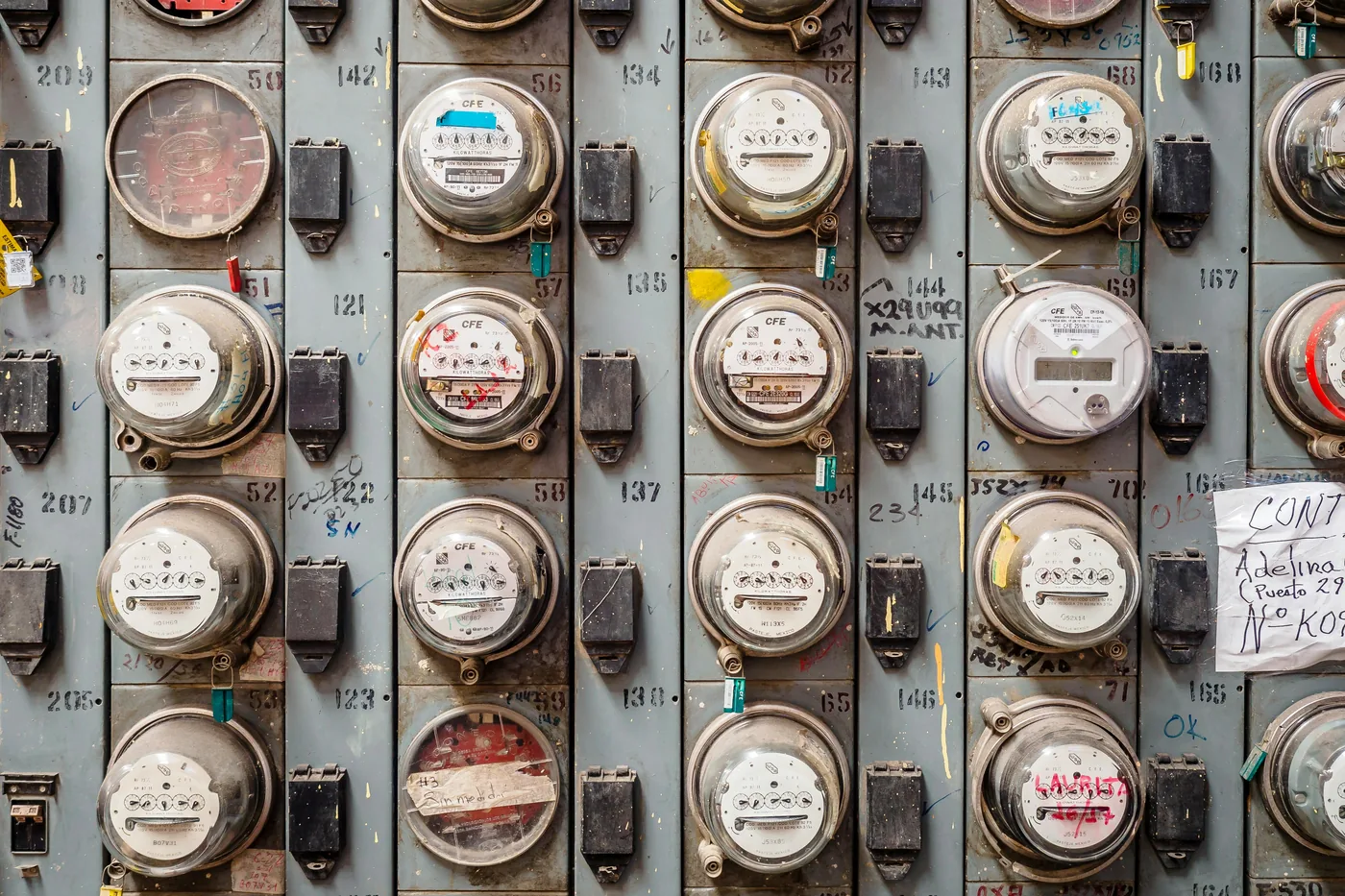
Watts, kilowatt-hours and estimated cost are different readings
| Reading | What it answers | What it does not prove |
|---|---|---|
| Power in watts (W) | How quickly the appliance draws electricity at that moment. | The amount used over a full day if its draw varies. |
| Energy in Wh or kWh | How much energy accumulated within a reported interval. One kWh equals 1,000 Wh. | Anything about devices outside the measured outlet. |
| Estimated cost | A calculation using recorded energy and a configured price. | Your entire utility bill, including all tariffs, taxes or fixed charges. |
A single watts snapshot is particularly misleading for cycling equipment. Startup, active operation and idle periods may differ. TP-Link’s Tapo energy-monitoring documentation distinguishes live power, historical consumption and app cost estimates. Check the interval behind a chart before drawing conclusions.
Choose a measurement method that does not create a new hazard
For low-power equipment whose maker permits plug-in monitoring, an appropriately rated energy-monitoring plug or watt meter can be useful without modifying permanent wiring. Check the exact monitor model, hardware version, local voltage and outlet type, permitted load types and the attached appliance’s manual. Do not stack adapters or assume “smart plug” means a product has a power-measurement function.
| Situation | Measurement approach | Important boundary |
|---|---|---|
| Compatible table lamp or desk accessory | Approved plug-in energy meter. | Use equipment supported by both manufacturers. |
| Appliance with its own telemetry | Use the manufacturer’s energy display where available. | History and accuracy features may change by region, model and firmware. |
| Refrigerator, freezer, air conditioner, washer or pump | Native telemetry or an appropriate professional method. | Startup current and interruption risks make generic smart plugs unsuitable without explicit approval. |
| Portable heater and other unattended heat source | Do not add a remotely controlled plug merely to measure or automate it. | CPSC recommends plugging portable heaters directly into wall outlets. |
| Whole-home or hardwired circuit | Utility meter/portal or professionally installed approved monitoring. | Do not open electrical panels or fit clamps without qualification and authorization. |
| Medical, alarm or other essential equipment | Non-interrupting approved monitoring or native data. | Do not introduce an uncontrolled switching point. |
TP-Link’s June 2026 load guidance explains that motors can draw high startup current beyond their normal running demand. The U.S. CPSC heater guidance recommends direct wall-outlet connection and switching portable heaters off when sleeping. Never replace a product’s own protective controls with a cloud routine.
Run a six-step energy audit on one approved device
1. Ask one answerable question
Instead of trying to instrument the entire home, ask whether a desk accessory draws much energy overnight or whether a lamp’s schedule changes its weekly consumption. A question with one load and an ordinary period gives a more interpretable result than a disconnected collection of snapshots. Use a permitted noncritical device, not an appliance that needs continuous power for safety.
2. Write down the measurement boundary
Record appliance and monitor model numbers, hardware versions, general room, local voltage, what is connected and the relevant manufacturer approval. If multiple devices share an approved monitored outlet, it reports their combined load, not each item separately. Keep the account owner and data retention policy on your inventory; do not store credentials.
3. Capture accumulated energy for a representative interval
Use the kWh view rather than only the instantaneous watts display. Record start and end times and observe at least a complete typical day for a consistent load. Capture several comparable days if use differs by weekday, occupancy or season. Note resets, firmware changes or outages that might invalidate a baseline.
The Department of Energy’s standby-power measurement overview explains that devices can consume electricity when apparently switched off. Small standby readings depend on meter resolution and conditions; repeat a surprising reading instead of treating a consumer app as a laboratory-grade test.
4. Do not change the baseline halfway through
Keep brightness, operating schedule and equipment configuration stable during the first observation. Note charging, software updates and unusual use. A single low-usage weekend is not a defensible estimate for every month of the year. Label the data with its real dates and conditions.
5. Change one suitable setting
Try the appliance’s supported sleep mode, dimming a compatible lamp or shortening an unnecessary lighting interval. Do not automate a router, security hub, refrigeration system or essential equipment off while relying on the service it provides. A user-controlled manual override should remain available where appropriate.
6. Re-measure and report the difference
Repeat over a comparable observation window. Write down baseline kWh, comparison kWh, the single change and any differences in use or conditions. If the result is tiny or inconsistent, say so. Convenience, comfort and energy savings are separate benefits: an automation can be worthwhile without a dramatic payback claim.
Calculate energy and running cost correctly
If the monitor reports watt-hours, divide by 1,000 to convert them to kilowatt-hours. For a truly constant load, approximate kWh equals watts multiplied by operating hours, divided by 1,000. With a cycling load, accumulated metered kWh is preferable because one instantaneous watt reading cannot represent every phase.
Energy-only cost estimate = measured kWh × applicable price per kWh. If your utility uses time-of-use blocks or tiered pricing, apply the actual tariff to the relevant energy in each period rather than a generic national average. Taxes, fixed service charges and other fees can make an app’s cost estimate different from the bill. Use a dated utility bill or official rate schedule to establish your actual terms.
To assess equipment payback, compare the measured energy difference with the device’s purchase, installation and subscription costs. Our Smart Home Cost & Budget Calculator lets you use your own purchase assumptions, but it does not fetch live electricity tariffs or validate an individual household’s savings.
Do not assume every Matter app displays energy history
Matter pairing and energy telemetry are separate capabilities. Check the device’s model and hardware version, firmware, Matter feature support and receiving platform. TP-Link’s KP125M V1 release notes describe Matter 1.3 energy tracking in August 2026, while warning that not all Matter apps fully implement it. The same page notes that a previous firmware upgrade could clear historical energy data. These observations concern a specific device and firmware, not every Matter plug.
If you plan to monitor a month, confirm whether the native app and destination controller keep a full month of history or provide export. Photograph or export the start/end data when lawful and useful. If the app estimates money, check the currency and input tariff; the default estimate may not reflect your provider. Do not use pairing success as proof that all readings and automations transferred.
Three practical first measurements
Desk equipment and idle demand
Measure one approved desk accessory across working and overnight intervals. Check whether it is sleeping, charging, updating or turned off. Compare the device’s native energy settings before adding a scheduled mains cutoff. Remote access, software updates and secure shutdown may matter more than a tiny reduction.
Room lighting
Record kWh for a compatible lamp for a representative week. Then use the bulb’s supported dimming or scheduling and compare a similar period. Include the energy used by a connected monitor if feasible, and separate any comfort or convenience improvement from a measured reduction. An unusually short or dark week is not proof of long-term savings.
Always-on routers and hubs
Network and security equipment often operates continuously for a reason. Native telemetry or a qualified whole-home method can establish its energy use without turning it off. Do not schedule a router or security hub to lose power while the same system depends on it for monitoring, alarms or device automation.
Common mistakes that invalidate the result
- Confusing W with kWh: 50W is a current power rate, not 50kWh consumed today.
- Using a maximum rating as average usage: a nameplate may describe capacity rather than normal energy consumption.
- Assuming a 15A label approves all appliances: load type, motor inrush, duty cycle and explicit manufacturer exclusions matter.
- Calling an outlet reading the whole-home figure: it measures only the approved connected load.
- Treating an app estimate as an actual bill: tariffs, taxes, fees and rate changes may be missing.
- Ignoring the meter’s own consumption: a connected plug draws energy too; very small claimed savings need context.
- Making several changes together: if occupancy, brightness and schedule all change, you cannot attribute the measured difference to one factor.
- Using the cloud as a safety interlock: a command, relay or internet service can fail. Keep protective equipment controls intact.
- Sharing raw household history carelessly: usage patterns may reveal routines; protect exports and remove former occupants’ access.
Printable energy-audit worksheet
Copy these fields into a notebook or print this page. Record only non-sensitive information and protect any exported usage history.
| Record | Your answer |
|---|---|
| Question and intended outcome | ___________________________ |
| Appliance and monitor model / hardware version | ___________________________ |
| Manufacturer-approved load? | Yes / No / Unverified |
| General location and local voltage | ___________________________ |
| Baseline dates, operating hours and kWh | ___________________________ |
| Single change and other conditions | ___________________________ |
| Comparison dates, hours and kWh | ___________________________ |
| Applicable tariff source and date | ___________________________ |
| Observed outcome, limitations and next action | ___________________________ |
If a device’s load compatibility or property permission is unknown, leave it unverified and stop rather than experimenting. For changes of occupant or equipment owner, the Device Inventory & Account Transfer Tracker records hardware ownership, app access and subscriptions independently. Do not store passwords, PINs, recovery codes or exact addresses in its exported file.
Sources and editorial method
- U.S. Department of Energy: Measuring Standby Power.
- ENERGY STAR: Smart Home Energy Management Systems criteria.
- TP-Link: energy-monitoring features, load compatibility guidance, and KP125M V1 firmware notes.
- CPSC: portable-heater safety guidance.
Editorial note (reviewed September 26, 2026): This procedure is based on manufacturer and agency documentation and does not claim hands-on accuracy testing, measured household bill reductions or professional electrical inspection. Re-check the current instructions for your exact product, region and firmware before using a meter or making changes.