
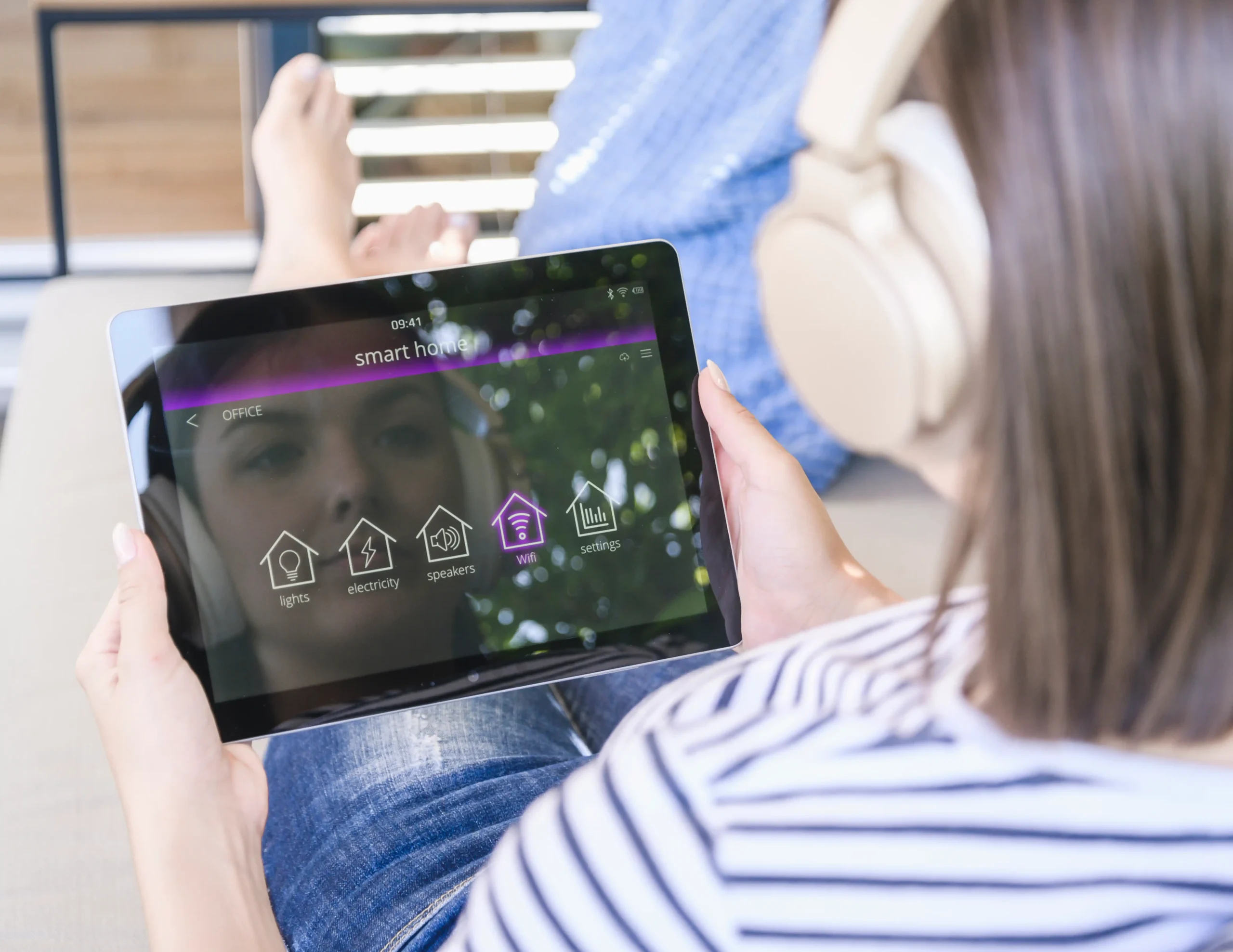
Setting up a smart home used to feel complicated. You needed multiple apps, expensive hubs, and patience for constant troubleshooting. That has changed.
Today, smart home devices are easier to install, more compatible, and much more reliable—especially if you build the system the right way from the start.
This guide shows you exactly how to set up smart home devices step by step, even if you are a complete beginner. You’ll learn what to buy first, how to connect devices, how to avoid common mistakes, and how to create a smart home that actually helps in daily life.
If you want lights that turn on automatically, doors that lock remotely, or routines that save time every day, this is where to begin.
What Is a Smart Home Setup?
A smart home setup means connecting household devices to your phone, voice assistant, or automation platform so they can be controlled remotely or run automatically.
Common examples include:
- Smart lights
- Smart plugs
- Smart thermostats
- Smart locks
- Security cameras
- Motion sensors
- Video doorbells
- Smart speakers
- Smart blinds
Instead of manually controlling everything, your home can respond automatically.
Example:
- Lights turn on at sunset
- Thermostat lowers temperature at bedtime
- Front door locks when you leave
- Motion sensor triggers hallway lights at night
That’s the real value of home automation.
Before You Buy Anything: Choose One Ecosystem
This is the most important step.
Many beginners buy random devices first, then discover they need three different apps and nothing works together.
Choose one main ecosystem:
Apple Home
Best for Apple users with iPhone, iPad, Apple TV, or HomePod.
Best for:
- Privacy-focused users
- Apple households
- Clean interface lovers
Google Home
Best for simplicity and voice commands.
Best for:
- Android users
- Google Nest products
- Easy setup
Amazon Alexa
Best for wide compatibility and budget smart homes.
Best for:
- Smart speakers
- Broad device support
- Affordable setups
Home Assistant
Best for advanced users who want full control.
Best for:
- Local control
- Privacy
- Powerful automations
- Multi-brand setups
Best Advice for Beginners
Pick one primary ecosystem, then add compatible devices around it.
Step 1: Fix Your Wi-Fi First
Most smart home problems are network problems.
Before installing devices:
Router Checklist
- Place router near center of home
- Update router firmware
- Use strong password
- Separate 2.4GHz and 5GHz if needed
- Avoid dead zones
- Restart old routers regularly
Why 2.4GHz Matters
Many smart devices only support 2.4GHz Wi-Fi because it reaches farther through walls.
If setup fails, this is often why.
Pro Tip
If your router supports it, create a separate IoT network for smart devices.
This improves:
- Security
- Reliability
- Network organization
Step 2: Best First Smart Devices to Buy
Do not automate everything at once.
Start with devices that solve daily pain points.
1. Smart Plugs
Perfect for beginners.
Use them for:
- Lamps
- Fans
- Coffee machines
- Heaters (if rated safely)
- Holiday lights
2. Smart Bulbs
Great for:
- Scheduled lighting
- Color scenes
- Motion lighting
3. Smart Speaker / Display
Acts as control center.
Examples:
- Alexa Echo
- Google Nest Hub
- Apple HomePod
4. Motion Sensors
Useful for:
- Hallway lights
- Bathroom night lights
- Security alerts
5. Smart Thermostat
Excellent for comfort + energy savings.
6. Smart Lock
Adds convenience and remote access.
Step 3: How to Set Up Smart Home Devices (Exact Process)
This works for most devices.
1. Plug In or Install Device
Power the device.
Examples:
- Plug smart plug into outlet
- Replace bulb
- Mount camera
- Install lock
2. Download Manufacturer App
Use official app only.
Examples:
- Kasa
- Ring
- Aqara
- Philips Hue
- Nest
3. Put Device Into Pairing Mode
Usually:
- Hold button 5–10 seconds
- Light flashes rapidly
4. Connect to Wi-Fi
Usually 2.4GHz if required.
5. Name Device Clearly
Use names like:
- Bedroom Lamp
- Front Door Lock
- Kitchen Plug
Avoid names like Device 1.
6. Update Firmware Immediately
This improves:
- Security
- Stability
- Compatibility
7. Add to Main Ecosystem
Link the device into:
- Apple Home
- Google Home
- Alexa
- Home Assistant
Now voice control and automations become easier.
Step 4: Build Useful Automations
Automation should solve real problems.
Not just show off.
Best Beginner Automations
Sunset Lights
Lights turn on 15 minutes before sunset.
Bedtime Routine
At 11 PM:
- Bedroom lights dim
- Doors lock
- Thermostat adjusts
Away Mode
When everyone leaves:
- Lights off
- Cameras armed
- Doors lock
Motion Hallway Lights
Motion detected between midnight–6 AM:
- Hallway lights at 20%
Morning Routine
At wake time:
- Lights brighten slowly
- Coffee plug powers on
- Weather spoken by smart speaker
Step 5: Use Sensors for Real Smart Home Power
Sensors are underrated.
They make homes feel automatic.
Useful Sensors
Motion Sensor
Turns lights on when entering room.
Door Sensor
Triggers alerts or lights when opened.
Temperature Sensor
Controls heating/cooling smarter.
Leak Sensor
Warns about water leaks near:
- Washing machine
- Sink
- Water heater
Presence Sensor
More advanced than motion. Detects if someone remains in room.
Step 6: Smart Home Security Setup
This part matters.
Must-Do Security Rules
- Use strong passwords
- Enable 2FA
- Update firmware monthly
- Delete unused devices
- Buy reputable brands
- Use separate IoT network
- Review camera permissions
Avoid Cheap Unknown Brands
Very cheap devices may have:
- Weak security
- Poor app support
- No updates
- Unstable connections
Step 7: Common Setup Problems (And Fixes)
Device Won’t Pair
Try:
- Reset device
- Move closer to router
- Use 2.4GHz
- Disable VPN on phone
- Restart router
Device Goes Offline
Try:
- Improve Wi-Fi signal
- Replace batteries
- Update firmware
- Reboot device
Voice Assistant Can’t Find Device
Try:
- Re-link account
- Rename device
- Sync devices again
Delayed Response
Often caused by:
- Weak Wi-Fi
- Cloud dependency
- Cheap router
Step 8: Smart Home Setup for Renters
You do not need to own a house.
Best renter devices:
- Smart plugs
- Smart bulbs
- Indoor cameras
- Door sensors
- Portable speakers
- Peel-and-stick sensors
Avoid permanent wiring unless landlord approves.
Step 9: Budget Smart Home Setup (Starter Plan)
If money is tight, start here.
Under $150 Example
- 2 smart bulbs
- 2 smart plugs
- 1 smart speaker
Under $300 Example
- Starter setup above
- Motion sensors
- Video doorbell
Under $600 Example
- Add thermostat
- Add smart lock
- Add cameras
Build slowly.
That’s smarter than overspending.
Step 10: Advanced Setup Later
Once basics work, expand into:
- Smart switches
- Smart blinds
- Multi-room audio
- Energy monitoring
- Presence detection
- Home Assistant dashboards
- Local automations
- Matter / Thread devices
Wi-Fi vs Zigbee vs Z-Wave vs Thread
Wi-Fi
Best for beginners.
Pros:
- Easy setup
- No hub often needed
Cons:
- Can overload router if many devices
Zigbee
Great for sensors and lighting.
Pros:
- Low power
- Reliable mesh network
Cons:
- Usually needs hub
Z-Wave
Strong reliability.
Pros:
- Excellent smart home protocol
Cons:
- Smaller device ecosystem in some regions
Thread / Matter
Modern future-focused option.
Pros:
- Better interoperability
- Fast local response
Cons:
- Still growing
My Recommended Beginner Setup Order
- Smart speaker
- Smart plugs
- Smart bulbs
- Motion sensors
- Camera or doorbell
- Thermostat
- Smart lock
- Advanced automations
This prevents overwhelm.
FAQ
How hard is smart home setup?
Much easier now. Most devices install in 5–15 minutes.
Do I need a hub?
Not always. Wi-Fi devices may not need one. Zigbee and Thread often benefit from hubs/border routers.
Is smart home worth it?
Yes if focused on convenience, security, or energy savings.
Which platform is best?
- Apple users: Apple Home
- Android users: Google Home
- Budget users: Alexa
- Power users: Home Assistant
Can I mix brands?
Yes—but check compatibility first.
Final Verdict
The best smart home setup is not the biggest one.
It’s the one that works every day without frustration.
Start small:
- Fix Wi-Fi
- Choose one ecosystem
- Buy reliable devices
- Build simple automations
- Expand slowly
Do that, and your smart home becomes genuinely useful—not a tech headache.